
FollowerApp Documentation
FollowerApp Login
Before logging in, make sure you create an account. Coaches or managers should create an account using their form, and team members should create an account using their form.

Coach or Manager Dashboard
Step-1:
First, we need to create a new team. Afterward, the
list should be displayed.


Step-2:
Select a team and create a new match for that team.

Step-3:
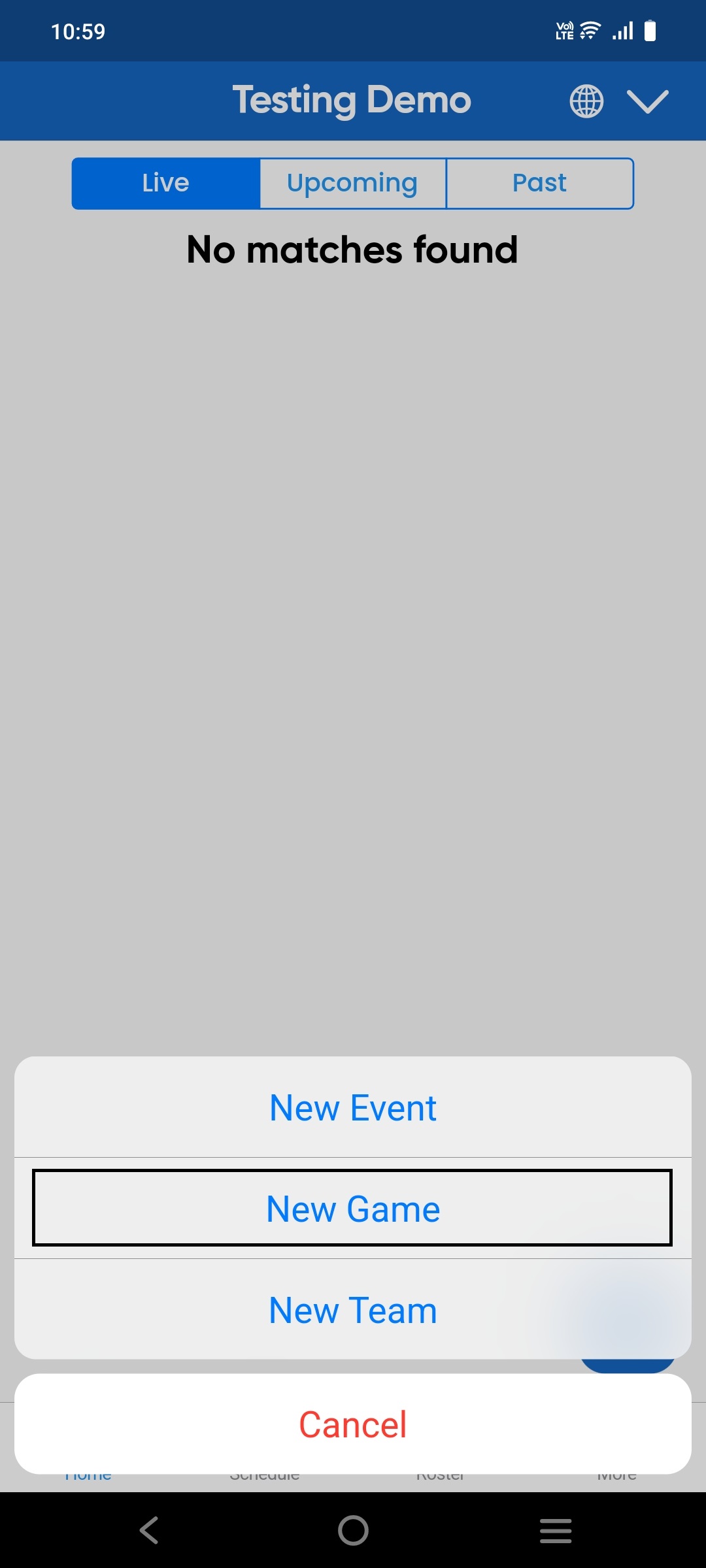
Game programs are accessible from here. In that form,
we can add a new opponent and location.


Home page: Live, Upcoming, Past
Step-1:
Live match: In the management app the coach will initialize the match that live match should be displayed in live match page.
Step-2:
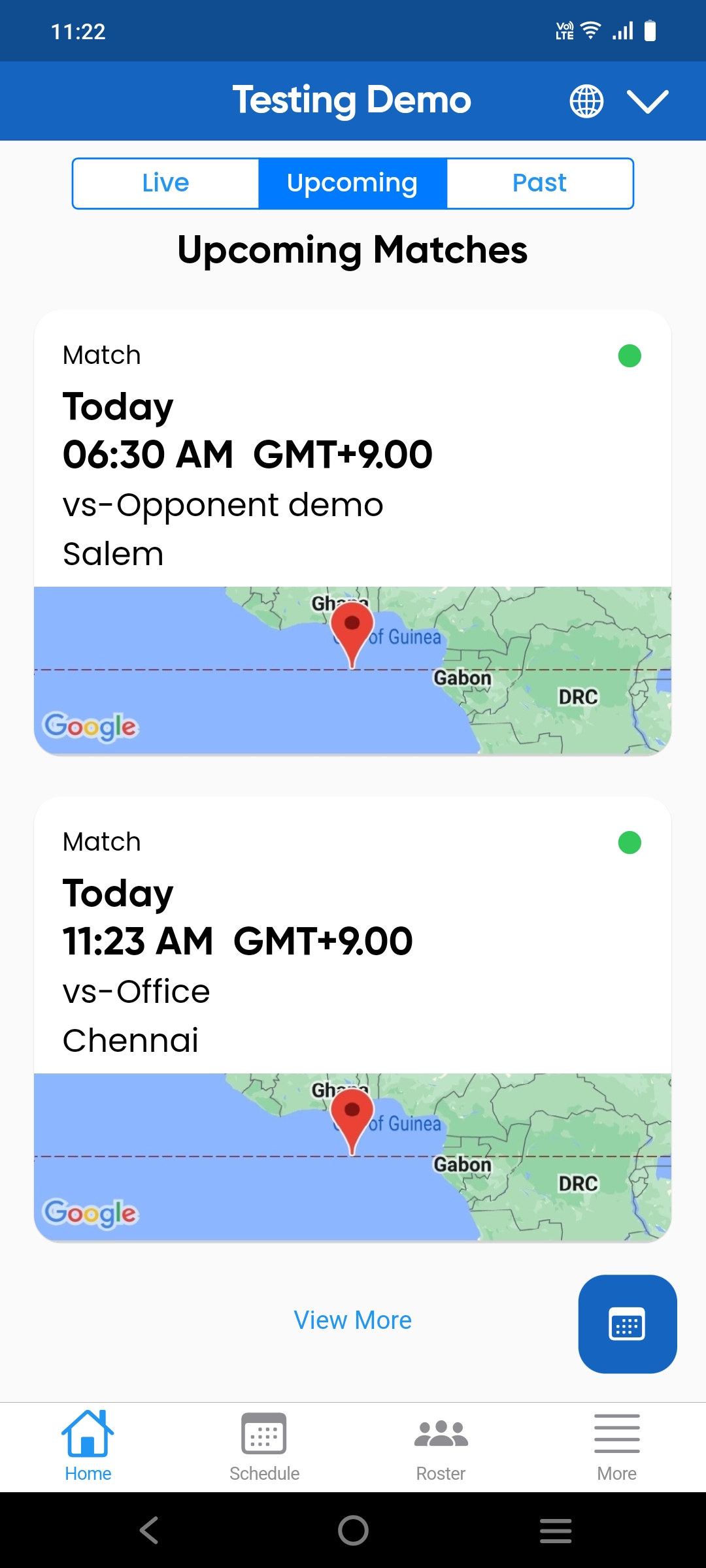
Upcoming match: The upcoming match will be displayed on the upcoming page.
Step-3:
Past match: Once the match is completed, it will be displayed on the past page.
Match details
Step-1:
When clicking on the matches, it will initially display the match details, which should be filled in the match form.

Step-2:
Availability: In the player login, when a player
provides their availability status, the player list should be displayed on the availability
page.
Player login screen

Coach login screen

Step-3:
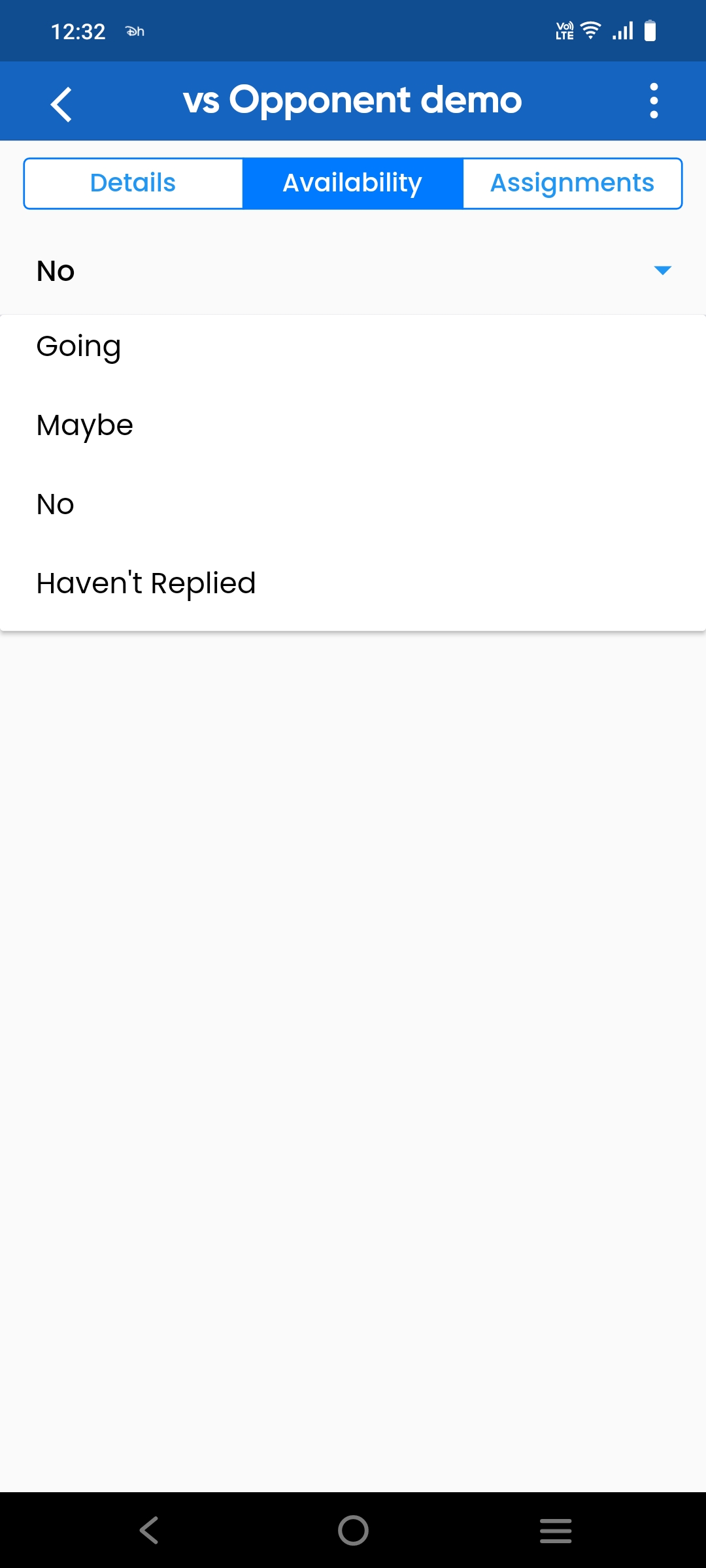
Use the filter to view the player availability status.
Step-4:
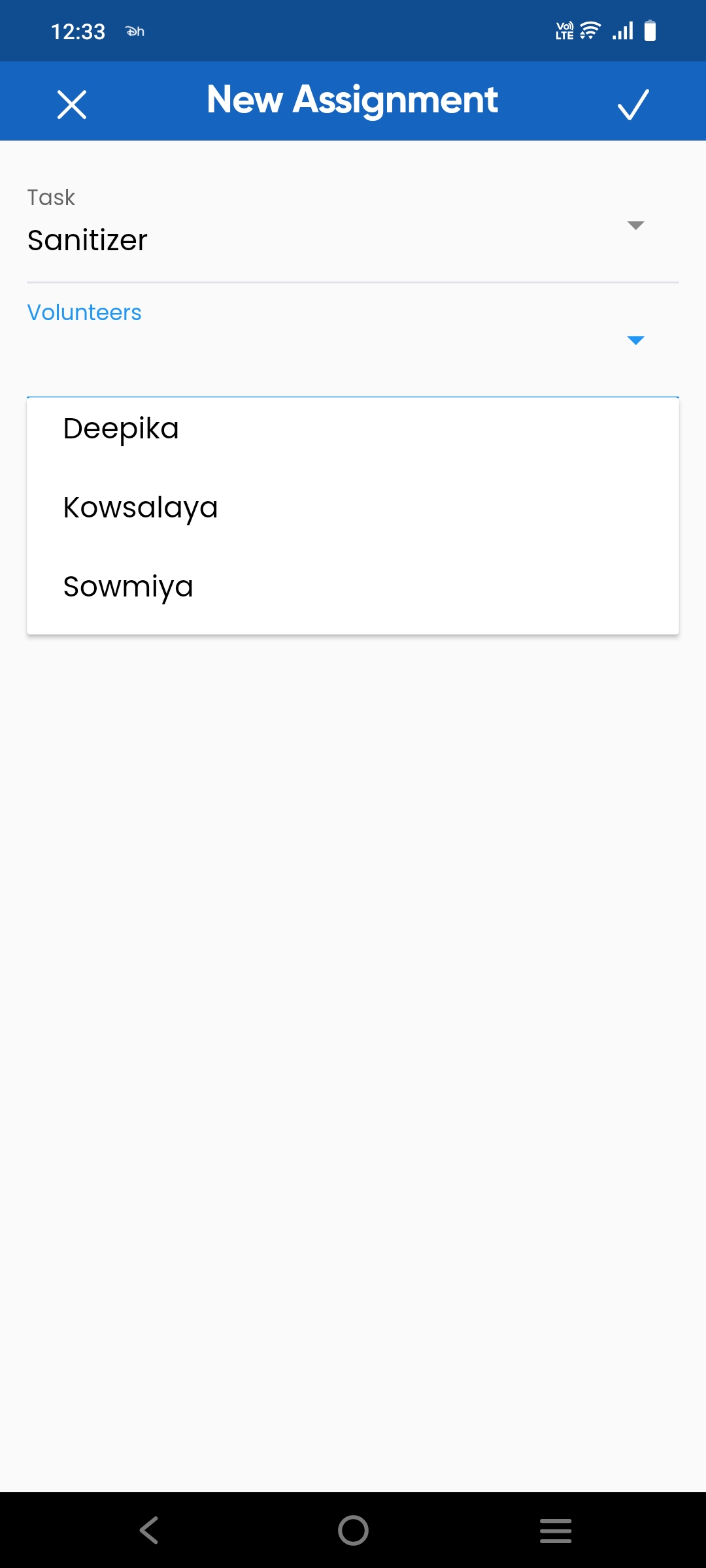
Assignments: Here, we can assign tasks to the player,
and the player will be listed on the screen.

Edit the Match
Here we can update the match.
Click on the three dots in the top right corner and then click the edit button.

The match details have been updated and are now displayed on the match details page.
Delete the match
Click on the three dots in the top right corner and then click the delete button.

The deleted match is no longer shown on the home page.
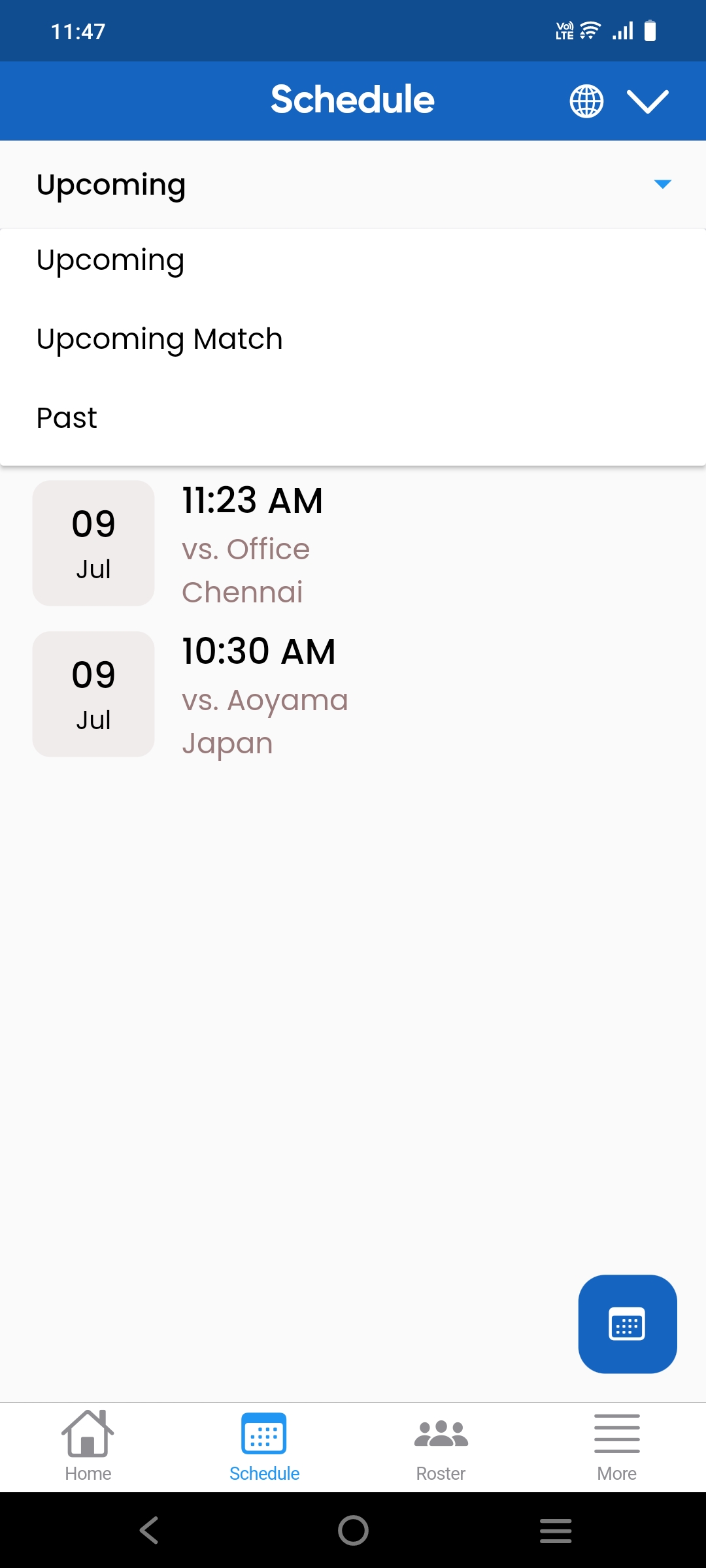
Schedule
Apply the filter to the match status.
Roster
Here, we have the option to add a new player to that team.
Step-1: Click on the "New Player" button and complete all the necessary fields in the form.


Step-2:
After completing step 1, click "Save" to display the new
player in the list.

Quickly add the player to their team
Step 1: Click the "Quick Player" button and enter the player's email address and name.


Import from contacts
Here, we can add a player from the list of contacts.
Click the "Import from Contacts" button and choose the name from your contacts list.

The imported contact will be shown in the roster list.
Filter option
Use the filter to view the list of players and coaches.

Profile & Settings
Coach: Here, only the coach details are visible.
Step-1:
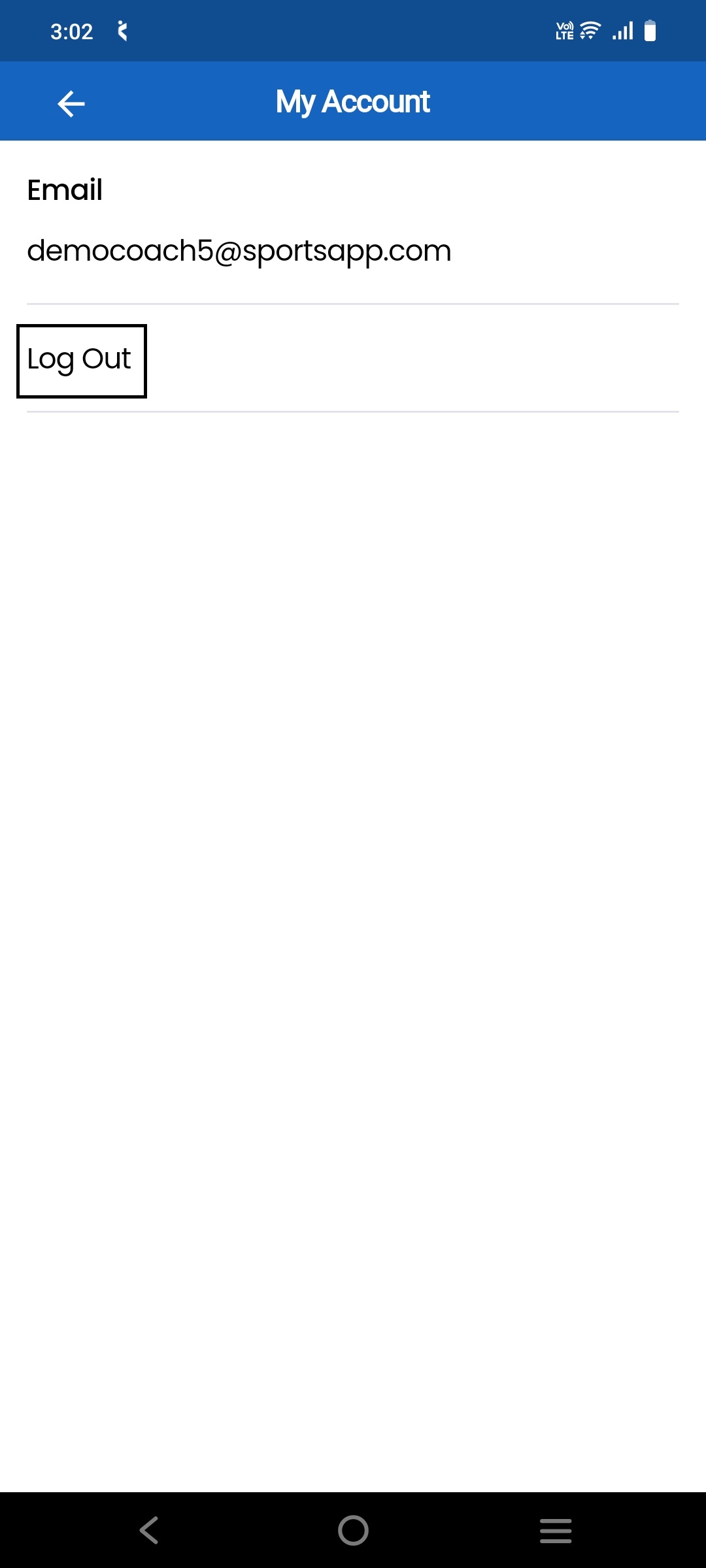
Click on "My Account" to view your account details.

Step-2:
Click Log Out to log out of the account.
Step-3:
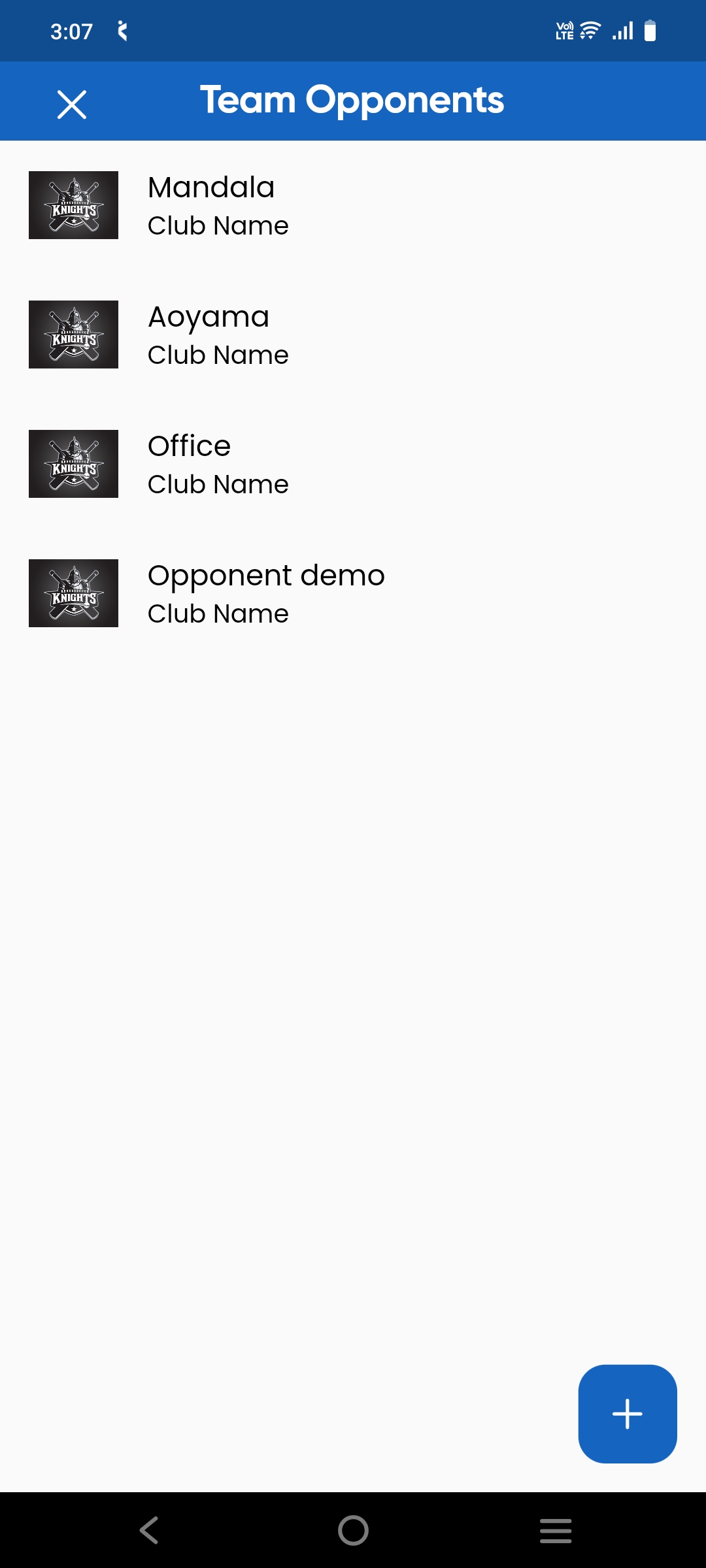
When you click on the team opponent, the opponent team
list will be displayed.
Step-4:
After completing step 3, click the "+" button to add a
new opponent team.

Step-5:
The added opponent will be displayed in the list. Click on it to view the details.

Conclusion
The Crusaders Sports club follower app offers fans a comprehensive way to stay connected with their favourite teams. With features like match details, player availability status, and a complete player name list, supporters can access crucial information at their fingertips. The settings feature allows users to customize their experience, ensuring they receive the most relevant updates. This app streamlines the fan experience, providing a one-stop solution for all essential team information and enhancing supporter engagement.